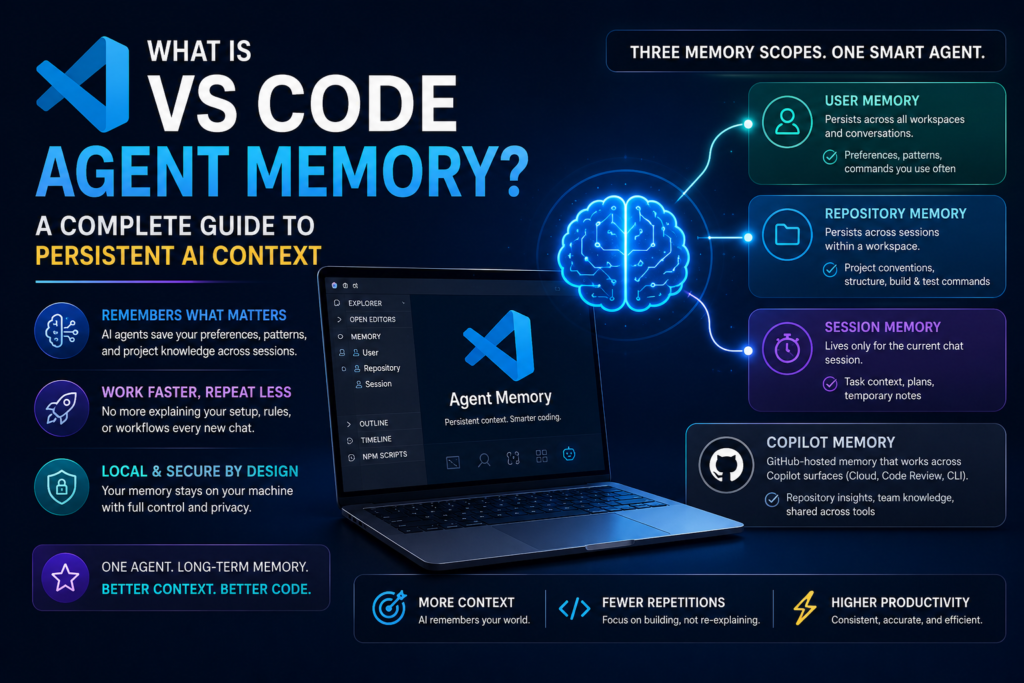
VS Code agent memory is a built-in system that lets AI coding agents save and recall notes across conversations, so they remember your preferences and codebase details instead of starting from zero every session. It works through a local memory tool with three scopes — user, repository, and session — plus an optional GitHub-hosted layer called Copilot Memory.
If you’ve ever had to re-explain your tab-vs-space preference or your team’s commit message format to an AI assistant for the tenth time, you already understand the problem this feature solves. This guide breaks down exactly how the feature works, how to use it day to day, and how it compares to Copilot Memory.
Why Developers Need Persistent AI Context
Before agentic coding tools added memory, every chat session was disconnected from the last. You’d open a fresh conversation, and the agent had no idea you’d already told it your linting rules, your preferred testing framework, or the fact that your API always requires an auth header. Multiply that across dozens of sessions a week, and the repetition adds up to real lost time.
The shift toward agents that plan, execute multi-step tasks, and touch large codebases made this problem worse, not better. An agent that forgets your architecture decisions halfway through a long refactor isn’t just annoying — it can actively introduce inconsistency into your project. That’s the gap this feature closes: it gives agents a durable record of what matters, so continuity survives across sessions instead of resetting every time you hit “New Chat.”
What Is VS Code Agent Memory?
VS Code agent memory refers to the mechanisms that allow agents inside VS Code to retain context between chats. Rather than treating every new conversation as a blank slate, agents equipped with this capability can recall your coding preferences, apply lessons learned from earlier tasks, and accumulate knowledge about a specific codebase over time.
This capability is currently delivered through two related but distinct systems:
- The memory tool — a local, built-in agent tool (currently in preview) that stores notes directly on your machine.
- Copilot Memory — a separate, GitHub-hosted system that captures repository-specific insights and shares them across Copilot surfaces like the cloud agent, code review, and CLI.
Both systems exist to solve the same underlying problem: AI agents that forget everything between sessions are frustrating to work with. This feature changes that by giving agents a durable, structured way to hold onto useful information — and it does so without requiring you to maintain a separate notes file or repeat yourself in every prompt.
It’s worth noting that the memory tool is currently in preview, which means its behavior may continue to evolve. Even so, the core mechanics — scopes, storage paths, and retrieval behavior — are stable enough to build real workflows around today.
How the Memory Tool Works
The memory tool is the foundation of VS Code agent memory. It allows an agent to write and read notes as it works, and you can also explicitly instruct it to remember something. Every piece of data the memory tool stores stays local to your machine — nothing is sent to an external server for this particular system.
Under the hood, the memory tool behaves like a lightweight, agent-managed filesystem. Instead of a single flat notes file, it organizes information into the three scopes below, each mapped to its own storage path. When an agent decides to save something, it chooses the scope that matches how long the information should stay relevant — a decision you can also make explicitly by phrasing your request accordingly.
The Three Memory Scopes
This system operates across three scopes, and each one is designed for a different lifespan and purpose.
| Scope | Storage Path | Persists Across Sessions | Persists Across Workspaces | Best Used For |
|---|---|---|---|---|
| User | /memories/ | Yes | Yes | Preferences, patterns, frequently used commands |
| Repository | /memories/repo/ | Yes | No (workspace-scoped) | Codebase conventions, project structure, build commands |
| Session | /memories/session/ | No (cleared at chat end) | No | Task-specific context, in-progress plans |
Understanding which scope applies to which situation is the key to getting reliable results. Store something in the wrong scope, and it either disappears too soon or lingers where it doesn’t belong.
User Memory
User memory is the broadest layer of the system. It persists across every workspace and every conversation, and the first 200 lines are automatically pulled into the agent’s context at the start of each session. This makes it the right home for general preferences that should apply no matter which project you’re working in.
For example, you could tell the agent:
Remember that I prefer tabs over spaces and always use single quotes in JavaScript
The next time you start a conversation — even in a completely different workspace — the agent applies that preference automatically.
Repository Memory
Repository memory scopes the system to a single workspace. It persists across conversations within that workspace but doesn’t leak into unrelated projects. This is the right place for facts tied to a specific codebase: architectural decisions, naming conventions, or the exact commands used to build and test the project.
This scope is particularly valuable on teams where multiple developers use the same agent tooling against a shared repository. Once one person teaches the agent a build quirk or a naming convention, that context is available in every subsequent session within the workspace — though it’s worth remembering that repository memory doesn’t currently sync between different developers’ machines the way Copilot Memory does.
For example:
Remember that this project uses the repository pattern for data access and all API endpoints require authentication
Session Memory
Session memory is the shortest-lived layer of the system. It’s scoped to the current conversation only and is wiped once the chat ends. This makes it ideal for temporary working notes, such as an in-progress implementation plan. The Plan agent, for instance, uses session memory to maintain a plan.md file that tracks its current strategy — viewable during the session through the Chat: Show Memory Files command, but gone once the conversation closes.
Because session memory disappears automatically, it’s a safe default for anything you don’t want cluttering up longer-term storage. If an agent is working through a multi-step migration and jotting down which files it has already touched, that tracking belongs here rather than in repository memory, which would otherwise accumulate stale task notes long after the migration is finished.
How Do You Store and Retrieve Memories in VS Code?
Direct answer: You store a memory by asking the agent to remember something in plain language, and you retrieve it by simply asking about that topic in a later conversation — the agent checks its memory files and surfaces what’s relevant.
To store a memory, phrase your request naturally:
Remember that our team uses conventional commits for all commit messages
The agent determines which scope fits best and writes to the appropriate memory file automatically. To pull that information back up later, just ask:
What are our commit message conventions?
Memory file references that appear in the agent’s responses are clickable, so you can open the underlying file and see exactly what was stored — useful for auditing what has accumulated over time.
This natural-language interface is deliberate. You don’t need to learn a special syntax or edit configuration files by hand; the agent interprets your intent and handles the mechanics of choosing a scope, writing the file, and formatting the note. That said, if you want more control, you can always ask the agent to show you a specific memory file and edit it directly through conversation, which is useful when a stored preference has become outdated or slightly inaccurate.
Managing Memory Files
VS Code includes two commands for keeping your memory system under control:
- Chat: Show Memory Files — opens a list of every memory file across all three scopes, letting you inspect the contents of each one.
- Chat: Clear All Memory Files — wipes every stored memory across all scopes in one action.
One current limitation worth noting: deleting individual memory files isn’t yet supported. If you want to remove a single outdated entry, your options are to clear everything with the command above or ask the agent directly to update a specific file and strip out the stale information.
What Is Copilot Memory?
Copilot Memory is a GitHub-hosted memory system, separate from the local memory tool, that lets Copilot agents learn and retain repository-specific insights as they work. While the local memory tool underpins the in-editor experience, Copilot Memory operates at the GitHub level and is shared across multiple Copilot surfaces — including the cloud agent, Copilot code review, and Copilot CLI.
This distinction matters because not every developer works exclusively inside VS Code. A team might trigger Copilot code review on a pull request, kick off a cloud agent task from a mobile device, and run Copilot CLI from a terminal — all without ever opening the editor. Copilot Memory is what lets insights discovered in one of those contexts carry over into the others, something the local memory tool can’t do on its own since it never leaves your machine.
How Copilot Memory Works
As Copilot agents operate inside your repositories, they automatically capture narrow, tightly scoped insights known as “memories.” These memories share four defining characteristics:
- Repository-scoped — tied to a specific repository, and creatable only by contributors with write access.
- Cross-agent — a pattern one agent learns becomes available to others. A finding from Copilot code review, for instance, can later inform Copilot cloud agent.
- Verified before use — agents check memories against the current state of the codebase before applying them, which helps prevent stale or incorrect notes from skewing results.
- Automatically expired — memories are deleted after 28 days, so outdated information doesn’t accumulate indefinitely.
Enabling Copilot Memory
Unlike the memory tool, which is on by default, Copilot Memory is opt-in. Individual users on Copilot Pro or Pro+ can turn it on through their personal Copilot settings on GitHub. Organizations and enterprises enable it through policy settings at the organization or enterprise level. Repository owners can also review and delete stored memories from Repository Settings under the Copilot Memory section.
Memory Tool vs. Copilot Memory: What’s the Difference?
Both systems contribute to the broader idea of persistent AI context in VS Code, but they’re built for different jobs, run on different infrastructure, and answer to different owners. Here’s how they compare side by side:
| Feature | Memory Tool | Copilot Memory |
|---|---|---|
| Storage location | Local (your machine) | GitHub-hosted (remote) |
| Available scopes | User, repository, session | Repository only |
| Shared across Copilot surfaces | No — VS Code only | Yes — cloud agent, code review, CLI |
| Who creates entries | You, or the agent during chat | Copilot agents, automatically |
| Enabled by default | Yes | No — opt-in required |
| Expiration policy | Manual management | Automatic, after 28 days |
These two systems aren’t competing with each other — they’re complementary. Use the local memory tool for personal preferences and editor-specific context. Use Copilot Memory when you want repository knowledge to benefit every Copilot surface your team touches, not just VS Code.
Best Practices for Using VS Code Agent Memory
A little discipline goes a long way toward keeping your memory system useful rather than cluttered. Keep these practices in mind:
- Match the scope to the lifespan of the information. Preferences that should follow you everywhere belong in user memory; codebase-specific facts belong in repository memory; anything temporary belongs in session memory.
- Be explicit when you want something remembered. Phrases like “remember that…” give the agent a clear signal to write a memory file rather than just respond conversationally.
- Periodically review stored memories. Use Chat: Show Memory Files to check what’s accumulated, especially in repository memory, where outdated conventions can quietly mislead an agent.
- Don’t rely on memory for critical, ever-changing facts. Build commands and architecture decisions are good candidates; volatile details like current sprint status are not.
- Combine both systems deliberately if you’re on a team. Use the memory tool for your own working style and Copilot Memory for insights that should propagate across every Copilot-powered surface your team uses.
- Correct mistakes quickly. If an agent misremembers a preference or applies an outdated repository convention, tell it directly and ask it to update the relevant memory file rather than letting the wrong information persist.
- Treat user memory as a living style guide. Since only the first 200 lines load automatically, keep this file focused on your most important, frequently used preferences rather than letting it sprawl into a catch-all list.
Common Issues and How to Resolve Them
Even with a preview feature, most friction points have straightforward fixes.
The agent isn’t applying a preference I stored. Check which scope it landed in using Chat: Show Memory Files. If a preference was saved to repository memory but you’re working in a different workspace, it won’t be visible. Re-state the instruction and ask the agent to store it in user memory instead if you want it to apply everywhere.
Memory files feel cluttered or outdated. Because individual file deletion isn’t yet supported, the cleanest path is to ask the agent to rewrite a specific memory file, removing anything that no longer applies. For a full reset, Chat: Clear All Memory Files wipes everything across all three scopes.
Copilot Memory doesn’t seem to be capturing anything. Confirm it’s actually enabled — it’s opt-in, so if no one has turned it on in personal settings or organization policy, no memories will be created. Also remember it only activates for contributors with write access to the repository.
Frequently Asked Questions
Is VS Code agent memory available by default? Yes. The local memory tool component of VS Code agent memory is enabled by default, though it’s currently in preview. Copilot Memory, by contrast, must be turned on separately.
Does VS Code agent memory send my data anywhere? The local memory tool stores everything on your machine. Copilot Memory is GitHub-hosted and requires write access to the repository, since it’s designed to be shared across Copilot surfaces.
Can I delete a single memory file? Not yet. Individual file deletion isn’t currently supported — you can clear all memory files at once or ask the agent to edit a specific file to remove outdated content.
How is Copilot Memory different from the local memory tool? The memory tool is local, spans three scopes, and is on by default. Copilot Memory is remote, repository-scoped only, opt-in, and shared across multiple Copilot surfaces beyond the editor.
Do I need to write memories in a special format? No. Both systems are designed around natural language. You simply ask the agent to remember something, and it handles scope selection, file creation, and formatting on its own.
Will VS Code agent memory work the same way once it’s out of preview? The core structure — scopes, storage paths, and the show/clear commands — is likely to remain stable, but specific behaviors, such as the 200-line auto-load limit for user memory, could change as the feature matures. Checking the official documentation before relying on it for critical workflows is a good habit.
Final Thoughts
VS Code agent memory addresses one of the most persistent frustrations in working with AI coding assistants: having to repeat yourself every time you open a new chat. By combining a local memory tool with three well-defined scopes and an optional GitHub-hosted layer in Copilot Memory, VS Code agent memory gives developers a practical way to build agents that genuinely get more useful the longer you work with them. Start small — teach the agent one or two preferences, watch how it applies them in later sessions, and expand from there.