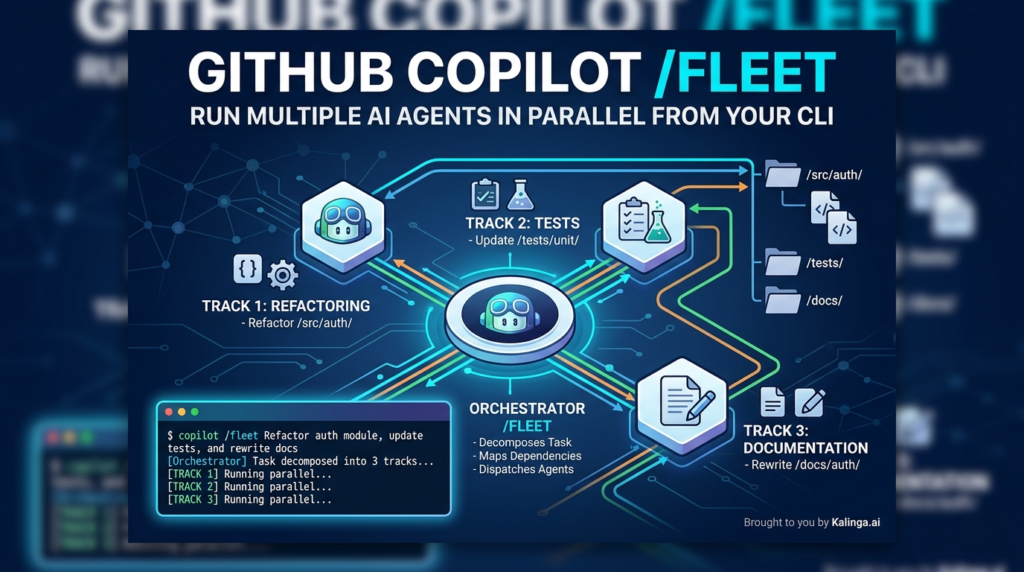
Imagine telling your AI coding assistant to refactor your auth module, update the test suite, and rewrite the docs — all at the same time. Not in sequence. Not waiting for one to finish before starting the next. All at once, like handing work to a full engineering team. That’s exactly what GitHub Copilot’s /fleet command makes possible — and if you haven’t started using it yet, you’re leaving serious developer productivity on the table.(GitHub Copilot /fleet)
Released in April 2026, /fleet is a slash command in GitHub Copilot CLI that enables true parallel execution across your codebase. It introduces a behind-the-scenes orchestrator that decomposes your task, identifies independent work streams, and dispatches multiple sub-agents simultaneously. This isn’t just a UX improvement — it’s a fundamental rethinking of how AI-assisted development works at scale.
In this post, we’ll go deep on how /fleet works, how to write prompts that actually parallelize well, what pitfalls to watch for, and when it makes sense (and when it doesn’t) to reach for it.(GitHub Copilot /fleet, GitHub Copilot CLI multi-agent, Parallel AI coding agents, Agentic developer workflows, CLI task orchestration)
What Is GitHub Copilot /fleet and Why Does It Matter?
The standard GitHub Copilot CLI experience is sequential — you give it a task, it works through it step by step, and you wait. That’s fine for single-file edits or quick fixes. But modern software work is rarely that simple. Feature implementations span the API layer, the UI, and the test suite. Refactors touch a dozen files. Documentation has to be written for multiple components at once.
GitHub Copilot /fleet was built for exactly this kind of multi-threaded work. When you invoke it with an objective prompt, an orchestrator kicks in that:
- Decomposes your task into discrete, independent work items
- Identifies dependencies — which tasks can run in parallel and which must wait
- Dispatches sub-agents simultaneously to execute the independent items
- Polls for completion, then triggers the next wave of dependent tasks
- Verifies outputs and synthesizes final deliverables
Each sub-agent gets its own context window but operates on the same shared filesystem. They can’t communicate with each other directly — only the orchestrator coordinates between them. Think of it like a project lead distributing work to a team, tracking progress, and assembling the final output.
The result is that tasks which would have taken Copilot several sequential passes can now happen in parallel — dramatically reducing wall-clock time on large, multi-file objectives.
Getting Started with /fleet
Getting up and running is straightforward. In Copilot CLI, simply type:
/fleet <YOUR OBJECTIVE PROMPT>For example:
/fleet Refactor the auth module, update tests, and fix the related docs in docs/auth/The orchestrator takes your objective, figures out what can be parallelized, and begins dispatching agents.
You can also run GitHub Copilot /fleet non-interactively, which is useful for scripted pipelines or CI-adjacent workflows:
copilot -p "/fleet <YOUR TASK>" --no-ask-userThe --no-ask-user flag is required here since there’s no way to respond to interactive prompts in this mode. That’s the whole setup — now the real craft is in how you write your prompts.
How to Write Prompts That Parallelize Well
This is where most developers will either unlock the full power of GitHub Copilot /fleet or end up with a glorified sequential run. The orchestrator can only split work effectively when your prompt gives it enough structure to identify independent pieces.
Be Specific About Deliverables
The single most important thing you can do is map every work item to a concrete artifact — a specific file, a test suite, a documentation section. Vague prompts collapse into sequential execution because the orchestrator can’t find clean boundaries.
Instead of this:
/fleet Build the documentationTry this:
/fleet Create docs for the API module:

- docs/authentication.md covering token flow and examples
- docs/endpoints.md with request/response schemas for all REST endpoints
- docs/errors.md with error codes and troubleshooting steps
- docs/index.md linking to all three pages (depends on the others finishing first)
Notice what that second prompt does: it gives the orchestrator four distinct deliverables, three of which can run in parallel, and one that explicitly depends on the others. The orchestrator will immediately recognize this structure and dispatch the three parallel docs agents while holding the index file for a second wave.
Set Explicit Boundaries for Each Sub-Agent
Sub-agents work best when they know exactly what they own and — just as importantly — what they don’t. A well-structured Copilot CLI multi-agent prompt includes:(GitHub Copilot /fleet, GitHub Copilot CLI multi-agent, Parallel AI coding agents, Agentic developer workflows, CLI task orchestration)
- File or module boundaries: Which directories or specific files each track is responsible for
- Constraints: What is explicitly off-limits (no touching the test suite, no dependency upgrades, etc.)
- Validation criteria: What passing looks like (lint, type check, specific tests that must pass)
Here’s a real-world example implementing feature flags across three independent tracks:
/fleet Implement feature flags in three tracks:

1. API layer: add flag evaluation to src/api/middleware/ — include unit tests for successful flag evaluation and API endpoints
2. UI: wire toggle components in src/components/flags/ — introduce no new dependencies
3. Config: add flag definitions to config/features.yaml and validate against schema

Run independent tracks in parallel. No changes outside assigned directories.
This prompt is structured, constrained, and gives the orchestrator everything it needs to distribute the work cleanly.
Declaring Dependencies: Letting the Orchestrator Sequence Correctly
Not all tasks are truly independent. A database schema migration, for instance, must complete before the ORM models can be updated — and the models must be done before the API handlers can reference them. If you don’t declare these dependencies explicitly, you risk agents stepping on each other or producing broken intermediate states.
The good news is that GitHub Copilot /fleet respects dependency declarations when you include them in your prompt. Here’s how to handle a staged database migration:
/fleet Migrate the database layer:

1. Write new schema in migrations/005_users.sql
2. Update the ORM models in src/models/user.ts (depends on 1)
3. Update API handlers in src/api/users.ts (depends on 2)
4. Write integration tests in tests/users.test.ts (depends on 2)

Items 3 and 4 can run in parallel after item 2 completes.
The orchestrator will serialize items 1 → 2, then dispatch 3 and 4 in parallel once item 2 is verified. This is a significant capability — you get the speed of parallelism where it’s safe, and the correctness of sequential execution where it’s required. (GitHub Copilot /fleet, GitHub Copilot CLI multi-agent, Parallel AI coding agents, Agentic developer workflows, CLI task orchestration)
Using Custom Agents for Specialized Work
One of the more powerful (and underused) features of GitHub Copilot /fleet is the ability to define custom agents with their own models, tool access, and system instructions — then reference them directly in your fleet prompt.
Custom agents live in .github/agents/ as markdown files with a frontmatter configuration block:
markdown
# .github/agents/technical-writer.md

---
name: technical-writer
description: Documentation specialist
model: claude-sonnet-4
tools: ["bash", "create", "edit", "view"]
---

You write clear, concise technical documentation. Follow the project style guide in /docs/styleguide.md.
Then in your fleet prompt:
/fleet Use @technical-writer.md as the agent for all docs tasks and the default agent for code changes.This opens up genuinely interesting possibilities. You can assign a heavyweight model to the most complex logic tracks and a lighter, faster model to boilerplate documentation tasks. You can give one agent access to bash for running tests and another read-only access to enforce safe boundaries. Custom agents let you treat your multi-agent AI workflow as a real team with specializations — not just identical workers doing different jobs.
Note: If you don’t specify a model in the agent definition, agents default to whatever the current Copilot default model is. Explicitly setting the model is recommended for reproducible results.
Verifying That Sub-Agents Are Actually Deploying in Parallel
A common confusion with GitHub Copilot /fleet is not being sure whether the orchestrator actually parallelized your task or just ran things sequentially anyway. Here’s how to verify:
| Signal | What to look for |
|---|---|
| Decomposition plan | Before execution begins, Copilot shares a plan. Check that it breaks into multiple tracks, not one long linear list. |
| Background task UI | Run /tasks after dispatch to open the task dialog and see active background agents. |
| Parallel progress updates | Watch for updates referencing separate tracks making progress simultaneously. |
If you’re not seeing parallelism, stop Copilot’s work and explicitly ask for decomposition before execution:
Decompose this into independent tracks first, then execute tracks in parallel. Report each track separately with status and blockers.This two-step approach — decompose, review, execute — is especially useful when you’re learning how the orchestrator thinks about your codebase.
Steering the Fleet Mid-Execution
After dispatching, you can send follow-up prompts to guide the orchestrator without stopping the whole run:
Prioritize failing tests first, then complete remaining tasks.List active sub-agents and what each is currently doing.Mark done only when lint, type check, and all tests pass.
This real-time steering is a powerful capability that most developers haven’t fully explored yet.
Common Pitfalls (and How to Avoid Them)
1. File Conflicts: The Silent Overwrite Problem
Sub-agents share a filesystem with no file locking. If two agents write to the same file, the last one to finish silently wins — no merge, no error, just an overwrite. This is arguably the most dangerous pitfall in Copilot CLI multi-agent workflows.
The fix: Assign each agent strictly distinct files in your prompt. If multiple agents need to contribute to a single file, have each write to a temporary output path and let the orchestrator merge them in a final step. Or set an explicit order — one agent writes, the next reads and extends — rather than having them both treat the file as their own.
2. Sub-Agents Can’t See Conversation History
Each sub-agent gets a fresh context when the orchestrator dispatches it. It does not have access to the earlier conversation between you and Copilot. This means if you’ve gathered useful context during the session — a list of known bugs, a constraint you mentioned earlier, a style decision you made — that information won’t automatically reach your sub-agents.
The fix: Make your /fleet prompt fully self-contained. Include all relevant context directly in the prompt, or reference files on disk that the sub-agents can read. Treat each fleet dispatch as if the sub-agents know nothing except what you explicitly tell them.
3. Vague Prompts Default to Sequential Execution
If the orchestrator can’t identify clean parallel work streams from your prompt, it will default to sequential execution — which defeats the purpose of using GitHub Copilot /fleet in the first place.
The fix: Always map work to specific files or directories. Use numbered lists with explicit dependency notes. The more structure you provide, the better the orchestrator can distribute the load.
When to Use /fleet — and When Not To
GitHub Copilot /fleet is genuinely powerful, but it’s not always the right tool. Here’s a practical decision framework:
Use /fleet when:
- You’re refactoring across multiple files or modules simultaneously
- You need to generate documentation for several components at once
- You’re implementing a feature that spans the API layer, UI, and tests
- You have independent code modifications that don’t share state or files
- You want to run docs and tests in parallel after a code change
Stick with standard Copilot CLI when:
- The task is strictly linear and single-file
- The work is highly sequential with no natural parallelism
- You want simpler debugging with a clear single-agent trace
- The task is quick enough that orchestration overhead isn’t worth it
Fleet adds coordination overhead. It pays off when there’s real work to distribute — the kind of multi-track, multi-file work that would otherwise require you to babysit a sequential agent through several passes.
The Broader Shift: Thinking in Teams, Not Tasks
The arrival of GitHub Copilot /fleet marks something more significant than a productivity feature — it represents a shift in how we should think about AI-assisted development. Single-agent, turn-by-turn interaction made sense when AI was a suggestion engine. But as AI becomes capable of producing complete, working code across complex codebases, the sequential bottleneck becomes the constraint.
Multi-agent AI workflows — where an orchestrator coordinates parallel sub-agents — are the natural architecture for this level of capability. You’re no longer prompting a tool; you’re directing a team. The skills that make a good engineering lead (clear task decomposition, explicit dependency management, clean interface boundaries, verification criteria) are exactly the skills that make a good /fleet prompt author.
This is why the investment in learning how to write good fleet prompts will compound. As GitHub continues to build on this foundation — and as parallel agent coordination becomes standard across AI development tools — developers who understand how to structure work for multi-agent execution will have a genuine advantage.
Getting the Most Out of /fleet: Quick Reference
| Best Practice | Why It Matters |
|---|---|
| Map each task to a specific file or directory | Enables clean decomposition and parallel dispatch |
| Declare dependencies explicitly | Prevents agents from working on incomplete foundations |
| Include validation criteria (lint, tests, type check) | Ensures sub-agents know what “done” looks like |
| Use custom agents for specialized tracks | Matches model capability to task complexity |
| Keep prompts fully self-contained | Sub-agents don’t have access to conversation history |
| Assign distinct files per agent | Prevents silent overwrites on shared filesystem |
| Start small and review the decomposition plan | Fastest way to learn how the orchestrator thinks |
Conclusion
GitHub Copilot /fleet is one of the most practically significant additions to the Copilot CLI toolset. It doesn’t just speed up individual tasks — it changes the shape of what’s possible in a single session. Refactoring a multi-module system, generating comprehensive documentation, implementing a feature end-to-end across stack layers: these are tasks that now belong in a single, well-structured fleet prompt rather than a long back-and-forth with a sequential agent.
The learning curve is real but shallow. Start with a task that has obvious parallelism — three documentation files, two independent modules, API and UI work that don’t share state. Watch how the orchestrator decomposes it. Adjust your prompt based on what you see. Within a few runs, you’ll develop an intuition for how to structure work that the GitHub Copilot CLI multi-agent system can distribute effectively.
The future of AI-assisted development isn’t a single agent doing more. It’s coordinated teams of agents, working in parallel, on the complex multi-file, multi-concern work that defines real software engineering. /fleet is where that future starts.
Frequently Asked Questions: GitHub Copilot /fleet
How does GitHub Copilot /fleet differ from standard Copilot CLI commands?
The primary difference lies in orchestration versus execution. Standard Copilot CLI commands are sequential; they process one prompt, wait for completion, and then move to the next. GitHub Copilot /fleet introduces an orchestrator layer that analyzes your objective, decomposes it into independent work streams (tracks), and dispatches multiple sub-agents to work on those tracks simultaneously. This allows you to perform multi-file refactors, documentation updates, and test suite generation all at once, significantly reducing the “wall-clock time” of complex development tasks.
Can I use different AI models for different sub-agents in a fleet?
Yes, this is one of the most powerful features of the /fleet ecosystem. By using Custom Agents defined in .github/agents/, you can assign specific models to specific tasks. For example, you might assign a heavyweight model like GPT-5.4 Pro or Claude 4 Sonnet to a complex architectural refactor track, while using a faster, lighter model for boilerplate documentation. If no model is specified, the fleet defaults to your current Copilot CLI settings.
How do I prevent sub-agents from overwriting each other’s work?
Because sub-agents share a filesystem without native file locking, “silent overwrites” are a risk. The best practice is to enforce strict directory or file boundaries within your prompt. Explicitly tell the orchestrator which agent owns which path (e.g., “Agent 1 owns /src/api and Agent 2 owns /src/ui“). If multiple agents must contribute to the same file, instruct them to write to temporary files and have the orchestrator merge them as a final, sequential step.
Do sub-agents in a fleet share the same conversation context?
No. This is a common pitfall. Each sub-agent is dispatched with a fresh context window centered on the specific task assigned by the orchestrator. They do not automatically see your previous chat history or the specific nuances you discussed with the main Copilot interface. To ensure success, your /fleet prompt must be fully self-contained, including all necessary constraints, style guides, and logic requirements.
What happens if one parallel track fails during execution?
The orchestrator monitors the status of all active agents. If a sub-agent fails (e.g., due to a linting error or a failed test), the orchestrator can be configured to halt the entire fleet or continue with non-dependent tracks. Using the --no-ask-user flag in non-interactive mode will typically cause the fleet to exit upon the first unrecoverable error, whereas interactive mode allows you to “steer” the fleet mid-execution and re-run specific failed tracks.
Is /fleet available for all GitHub Copilot users?
As of the April 2026 update, /fleet is a core feature of the GitHub Copilot CLI for Individual, Business, and Enterprise subscribers. However, advanced features like Custom Agent definitions and certain high-token-window models may require a Copilot Enterprise seat or specific organizational permissions.