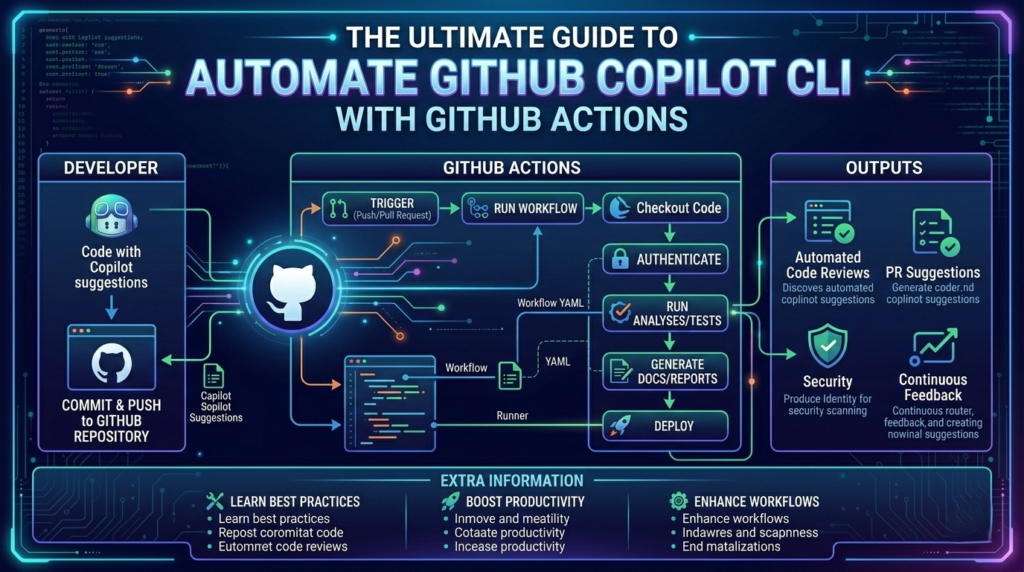
In the rapidly evolving landscape of DevOps, the ability to automate GitHub Copilot CLI has become a competitive necessity for engineering teams aiming for high-velocity delivery. GitHub Copilot is no longer just an “autocomplete” tool for your IDE; it has evolved into a powerful terminal agent capable of performing complex, multi-step operations autonomously. By integrating this intelligence into your CI/CD pipelines, you transform passive automation into an active, intelligent feedback engine.
In this comprehensive guide, we will explore how to automate GitHub Copilot CLI using GitHub Actions, covering everything from authentication security to advanced real-world use cases that will save your team hundreds of manual hours.
What is GitHub Copilot CLI?
Before we dive into the automation steps, it is essential to understand the dual nature of the tool. GitHub Copilot CLI operates in two primary modes:
- Interactive Mode: A conversational interface where developers work back-and-forth with the AI to troubleshoot or explore a codebase.
- Programmatic Mode: This is the key to our goal. Using the
-por--promptflag, you can automate GitHub Copilot CLI to execute single tasks and exit, making it perfect for non-interactive scripts and CI/CD environments.
Why You Should Automate GitHub Copilot CLI with GitHub Actions
When you automate GitHub Copilot CLI within your GitHub Actions workflows, you move beyond simple shell scripts. Traditional automation follows a rigid “if-this-then-that” logic. AI-powered automation, however, provides:
- Contextual Summarization: Automatically generate daily stand-up reports or PR summaries based on git history.
- Intelligent Debugging: Analyze failed build logs and suggest fixes before a human even opens the ticket.
- Proactive Documentation: Keep your READMEs and API docs in sync with code changes without manual intervention.
Step 1: Prerequisite Setup and Licensing
To automate GitHub Copilot CLI, you must have an active GitHub Copilot subscription (Individual, Business, or Enterprise). If you are part of an organization, ensure your administrator has enabled the “Copilot CLI” policy in the organization settings.
Required Permissions
For a GitHub Action to run Copilot commands, it needs more than just standard repository access. You will need:
- A Fine-grained Personal Access Token (PAT).
- The permission “Copilot Requests” (Read access).
- Repository “Contents” (Read access).
Step 2: Authenticating for Automation
The biggest hurdle to automate GitHub Copilot CLI in a headless environment (like a GitHub Actions runner) is authentication. Unlike your local machine, the runner cannot open a browser for an OAuth device flow.
Creating the Token
- Go to your GitHub Settings > Developer Settings > Personal Access Tokens > Fine-grained tokens.
- Click Generate new token.
- Under “Permissions,” select Account permissions > Copilot Requests and set it to Read-only.
- Save the token as a secret in your repository (e.g.,
COPILOT_PAT).
Pro-Tip: Never use a Classic PAT, as they are being phased out and do not support the specific granularity required to safely automate GitHub Copilot CLI.
Step 3: Building the GitHub Action Workflow
Now, let’s look at the actual YAML structure. To successfully automate GitHub Copilot CLI, your workflow must follow a specific sequence: Checkout, Node setup, Install CLI, and Execute.
Sample Workflow: The Daily Repository Summarizer
YAML
name: AI Repository Summary
on:
  schedule:
    - cron: '0 18 * * *' # Runs every day at 6 PM
  workflow_dispatch:

jobs:
  ai-summary:
    runs-on: ubuntu-latest
    steps:
      - name: Checkout Repository
        uses: actions/checkout@v4
        with:
          fetch-depth: 0 # Important for reading git history

      - name: Setup Node.js
        uses: actions/setup-node@v4
        with:
          node-version: '20'

      - name: Install Copilot CLI
        run: npm install -g @github/copilot

      - name: Automate GitHub Copilot CLI Prompt
        env:
          COPILOT_GITHUB_TOKEN: ${{ secrets.COPILOT_PAT }}
        run: |
          # We use programmatic mode to generate a summary
          copilot -p "Summarize the major code changes today. Focus on logic shifts and API changes." > daily-report.md

      - name: Upload Summary
        uses: actions/upload-artifact@v4
        with:
          name: ai-daily-report
          path: daily-report.md
In the example above, we effectively automate GitHub Copilot CLI to act as a project manager, reading the day’s work and distilling it into a markdown file.
Step 4: Advanced Use Cases for AI-Driven DevOps
If you want to fully leverage the power of your subscription, you should automate GitHub Copilot CLI for more than just simple text summaries. Here are three advanced implementations:
1. Build Failure Analysis
One of the most frustrating parts of DevOps is digging through 5,000 lines of logs to find a missing semicolon. You can automate GitHub Copilot CLI to catch these errors.
- Workflow: If a build step fails, pipe the tail of the log into
copilot -p "Explain why this build failed and suggest a fix." - Result: The AI posts a comment on the failed PR with the exact solution.
2. Automatic Test Generation
Whenever a developer pushes code to a specific directory (e.g., /src/services), you can automate GitHub Copilot CLI to scan the new functions and generate a draft Jest or PyTest file.
- Command:
copilot -p "Generate unit tests for @src/services/auth.js following our existing test patterns."
3. Security Vulnerability Scanning
While tools like Snyk and Dependabot are great, they often miss logic-based security flaws. You can automate GitHub Copilot CLI to perform a “sanity check” on code changes.
- Prompt: “Review the diff in this PR and flag any potential SQL injection or insecure credential handling.”
Step 5: Security and Best Practices
When you automate GitHub Copilot CLI, you are giving an AI agent the ability to read your codebase. Security must be your top priority.
- Token Scoping: Ensure your PAT is scoped only to the repositories it needs. Do not use an “All Repositories” token.
- Environment Protection: For sensitive repositories, use GitHub “Environments” with required reviewers. This ensures that even if you automate GitHub Copilot CLI, no AI-generated code is merged without human approval.
- Log Masking: GitHub Actions automatically masks secrets, but always verify that your AI prompts don’t accidentally print sensitive environment variables into the standard output.
- Tool Restrictions: When using programmatic mode, you can use flags like
--allow-tool 'shell(git)'to limit what the AI can actually do on the runner. This prevents the AI from executing arbitrary commands if a prompt is poorly formed.
Monitoring and Cost Management
Every time you automate GitHub Copilot CLI, you are consuming “Premium Requests.” While most Enterprise plans have high limits, it is important to monitor usage.
- Use the
/usageslash command locally to see your current token consumption. - In your automated workflows, add the
-s(silent) flag to prevent the CLI from printing usage statistics into your logs, which keeps your Action logs clean and readable.
The Future: Toward Autonomous DevOps
As we look toward 2026, the trend is moving from simple automation to Autonomous DevOps. The ability to automate GitHub Copilot CLI is the first step in building a self-healing infrastructure. Imagine a pipeline that not only identifies a bug but also creates a new branch, writes a fix, runs the tests, and submits a PR for your review—all while you sleep.
By starting to automate GitHub Copilot CLI today, you are preparing your team for the next generation of software development. You are reducing “toil”—the manual, repetitive work that burns out engineers—and allowing your developers to focus on creative problem-solving.
Conclusion
To automate GitHub Copilot CLI is to empower your CI/CD pipeline with a “brain.” Whether you are generating reports, debugging failures, or writing tests, the integration of AI into GitHub Actions is a game-changer for productivity.
Follow the steps outlined in this guide: set up your PAT, configure your YAML, and start with a simple daily summary. Once you see the value, you can expand your workflows to handle the heavy lifting of your DevOps lifecycle. The goal isn’t just to work faster; it’s to work smarter by letting AI handle the routine while you handle the innovation.
FAQ: Automating GitHub Copilot CLI
Q: Can I automate GitHub Copilot CLI on local Jenkins or GitLab? A: Yes! Because Copilot CLI is a standard Node.js package, you can install and automate GitHub Copilot CLI in any environment where you can set environment variables (like COPILOT_GITHUB_TOKEN).
Q: Is there a limit to how many times I can automate GitHub Copilot CLI per day? A: Limits depend on your Copilot plan. For most Business and Enterprise users, the limits are high enough to support standard CI/CD needs, but avoid “infinite loops” in your prompts.
Q: Does automating the CLI cost extra? A: No, it is included in your existing Copilot subscription. However, it uses your “Premium Request” quota.