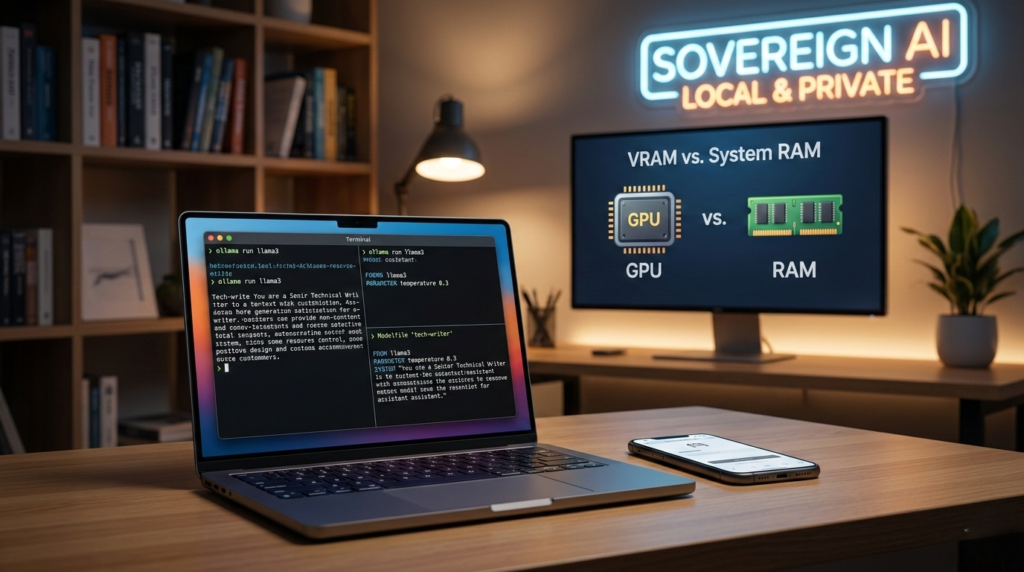
In the rapidly evolving landscape of Artificial Intelligence, the ability to control your own models is no longer a luxury—it is a necessity for developers and privacy-conscious users alike. While cloud-based solutions like ChatGPT offer convenience, they come with trade-offs in data ownership, recurring costs, and internet dependency.
Enter Ollama, an open-source powerhouse that simplifies the process of hosting Large Language Models (LLMs) on your own hardware. This guide will walk you through how to run and customize LLMs locally with Ollama, transforming your machine into a private, high-performance AI workstation.
Why You Should Run and Customize LLMs Locally with Ollama
Before diving into the “how,” it is essential to understand the “why.” Choosing to run and customize LLMs locally with Ollama offers several transformative benefits that cloud providers simply cannot match.
- Complete Data Privacy: Your prompts and data never leave your machine. This is critical for developers working with proprietary code or sensitive information.
- Zero Latency & Offline Access: Whether you are on a plane or in a remote area, your AI remains fully functional without an internet connection.
- Cost Efficiency: Eliminate monthly subscription fees and unpredictable API token costs. Once you have the hardware, the “intelligence” is free.
- Infinite Customization: Through the use of “Modelfiles,” you can tune model personalities, creativity levels, and system instructions to fit specific workflows.
Getting Started: Installation and Setup
To run and customize LLMs locally with Ollama, you first need to install the software. Ollama supports macOS, Linux, and Windows (currently in preview).
Hardware Requirements
To ensure a smooth experience, consider these hardware tiers:
- Small Models (1B–4B parameters): 8GB RAM, integrated graphics are sufficient.
- Medium Models (7B–9B parameters): 16GB RAM, 6GB+ VRAM (GPU) recommended.
- Large Models (12B+ parameters): 32GB+ RAM, 12GB+ VRAM required for optimal speed.
Installation Steps
- Visit the official Ollama website and download the installer for your OS.
- Run the executable and follow the setup wizard.
- Open your terminal (Command Prompt or PowerShell on Windows) and type
ollama --versionto verify the installation.
How to Run Your First Local LLM
Once installed, the process to run and customize LLMs locally with Ollama is incredibly straightforward. The run command handles everything: it pulls the model weights from the library and launches an interactive chat session.
Basic Commands
- Start a model:
ollama run llama3 - List installed models:
ollama list - Remove a model:
ollama rm gemma - Exit the chat: Type
/byeor pressCtrl + D.
Deep Dive: How to Customize LLMs with Modelfiles
The true power of this tool lies in your ability to run and customize LLMs locally with Ollama using a Modelfile. A Modelfile is a configuration script that tells Ollama how to set up a specific model instance. It is essentially “programming” your AI’s personality.
The Anatomy of a Modelfile
| Instruction | Purpose | Example |
| FROM | Defines the base model architecture. | FROM llama3 |
| PARAMETER | Sets generation variables like temperature. | PARAMETER temperature 0.2 |
| SYSTEM | Defines the “permanent” persona or role. | SYSTEM "You are a Senior Dev." |
| TEMPLATE | Customizes the prompt/response structure. | (Advanced formatting) |
Actionable Insight: Creating a “Technical Writer” Assistant
If you want to run and customize LLMs locally with Ollama for professional documentation, follow these steps:
- Create a file named
Modelfile(no extension) in a new folder. - Paste the following configuration:Plaintext
FROM llama3 PARAMETER temperature 0.3 SYSTEM "You are a Senior Technical Writer. Provide structured, professional, and clear documentation without fluff." - In your terminal, navigate to that folder and run:
ollama create tech-writer -f Modelfile - Launch your new custom model:
ollama run tech-writer
Optimizing Performance: VRAM vs. System RAM
When you run and customize LLMs locally with Ollama, the speed of the AI depends on where the model is stored during execution.
- VRAM (Video RAM): This is the high-speed memory on your GPU. If a model fits entirely here, the AI will generate text faster than you can read it.
- System RAM: If your model exceeds your GPU capacity, Ollama “spills over” into your regular RAM. While this allows you to run massive models on modest hardware, the generation speed will drop significantly (from ~50 words per second to ~2 words per second).
Pro Tip: To maximize speed, use “Quantized” versions of models (e.g., 4-bit quantization), which reduce memory footprint without a significant loss in intelligence.
Beyond the Terminal: UI and API Integrations
You don’t have to stay in the command line to run and customize LLMs locally with Ollama.
OpenWebUI
For a ChatGPT-like experience, you can install OpenWebUI. It provides a beautiful browser interface where you can upload documents, manage multiple models, and chat visually.
- Installation: Usually via Docker or Python (
pip install open-webui). - Connection: It connects to Ollama via
http://localhost:11434.
Local REST API
For developers, Ollama serves a local REST API that is compatible with OpenAI’s API format. This means you can swap out costly cloud endpoints in your Python or JavaScript apps for your local Ollama instance by simply changing the base_url.
Advanced Usage: Multimodal Models and RAG
Ollama isn’t just for text. You can run and customize LLMs locally with Ollama that understand images, such as LLaVA. This allows you to build local applications that can describe images or extract text from photos without sending those images to a third-party server.
Furthermore, by combining Ollama with tools like LangChain, you can build Retrieval-Augmented Generation (RAG) systems. This allows the LLM to “read” your local PDFs or private databases and answer questions based solely on your personal files.
Summary of Best Practices
To successfully run and customize LLMs locally with Ollama, keep these tips in mind:
- Start Small: Begin with a 1B or 3B parameter model to test your system’s performance.
- Use System Prompts: Don’t repeat yourself; use the
SYSTEMinstruction in a Modelfile to lock in your AI’s behavior. - Monitor Resources: Use Task Manager (Windows) or Activity Monitor (macOS) to see how much VRAM the model is consuming.
- Stay Updated: Ollama is updated frequently with support for new models like Gemma 3 or Llama 4; run the update installer regularly.
The ability to run and customize LLMs locally with Ollama represents a shift toward “Sovereign AI.” By hosting your own models, you gain the freedom to experiment, the security of privacy, and the power of professional-grade automation—all from your own desk.