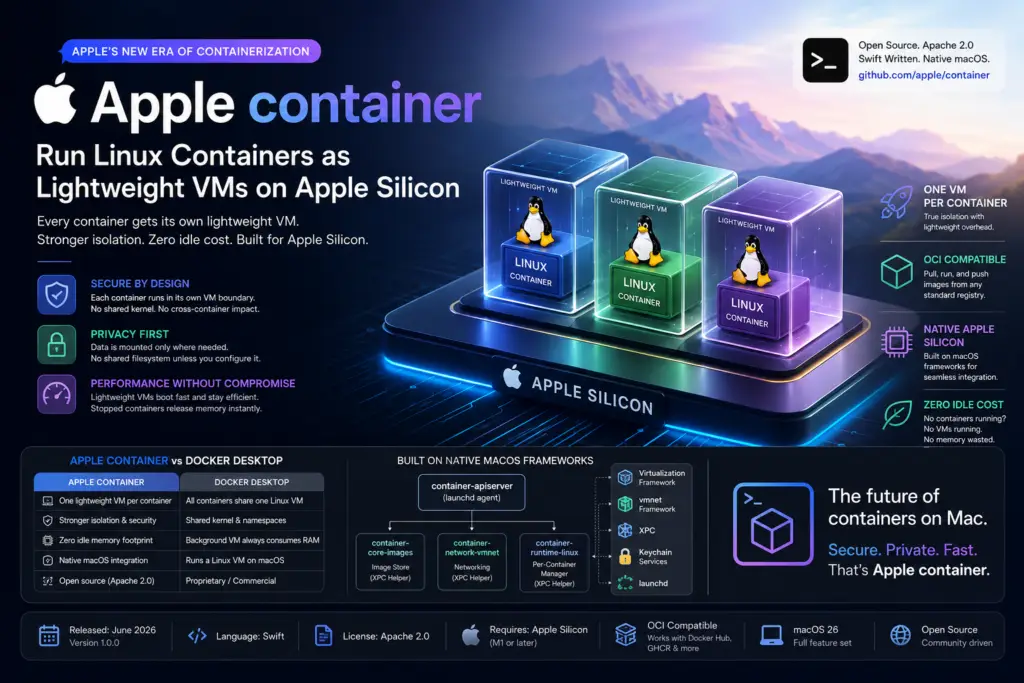
Apple’s container tool gives every Linux container its own isolated virtual machine on Apple Silicon — no shared kernel, no always-on background VM, zero idle memory cost. If you’ve been relying on Docker Desktop as your only option for containerized development on macOS, version 1.0 of Apple container is the first serious native alternative worth your attention.
Released in June 2026 under the Apache 2.0 license, Apple container is an open-source, Swift-written CLI that consumes and produces OCI-compatible images, integrates with the macOS Virtualization framework, and runs on Apple Silicon Macs without any commercial strings attached. This guide covers everything you need to know: the architecture, real-world use cases, a command reference, a head-to-head comparison with Docker Desktop, and an honest look at its limitations.
What Is Apple’s container Tool?
Definition: Apple container is a command-line interface tool, written in Swift, that builds images, runs containers, and moves images to and from OCI registries — all natively on macOS with Apple Silicon. It is built on top of the open-source Containerization Swift package, which handles low-level container, image, and process management.
In practical terms, it means: You can pull an image from Docker Hub or GitHub Container Registry, run it on your Mac, and push the resulting image to any standard registry — the same workflow you already know, but powered by a fundamentally different runtime model.
Key facts at a glance:
- Released: June 2026, version 1.0.0
- Language: Swift
- License: Apache 2.0
- Requires: Mac with Apple Silicon (M1 or later)
- macOS support: Full feature set on macOS 26; functional with networking limitations on macOS 15
- Image format: OCI-compatible (works with Docker Hub, GHCR, and any standard registry)
- GitHub: github.com/apple/container
The Architecture That Sets Apple container Apart
Most macOS container runtimes share a single, always-on Linux VM. Every container you spin up lives inside that shared kernel. It is simple and resource-efficient when idle — but it means containers share kernel namespaces, and the VM consumes RAM even when no containers are running.
Apple took a fundamentally different path with Apple container.
One Lightweight VM Per Container
Every container you create gets its own lightweight virtual machine. There is no shared kernel between containers. When a container stops, its VM is torn down and the memory is freed. This model trades a small amount of start-up overhead for a meaningful security and isolation gain.
This is not a full-weight VM in the traditional sense. Boot times are comparable to containers running in a shared VM, and the memory footprint is kept minimal by shipping a stripped-down set of core utilities and dynamic libraries. Apple calls this approach “lightweight VMs” — and the distinction matters: you get VM-grade isolation at something closer to container startup speeds.
The Three Design Pillars: Security, Privacy, and Performance
Apple explicitly describes three properties that guided the per-VM architecture:
Security: Each container runs in its own VM boundary. A vulnerability or misconfiguration in one container cannot directly affect the kernel namespace of another. The minimal guest environment further reduces the attack surface by eliminating unnecessary system utilities.
Privacy: Data is mounted only into the specific VM that needs it. There is no shared filesystem between containers unless you explicitly configure one. This makes it easier to reason about data access for sensitive workloads.
Performance: The lightweight VMs are designed to stay memory-efficient. Stopped containers release their footprint immediately. Boot times are kept competitive by a lean guest image, avoiding the sluggishness typically associated with full virtualization.
How Apple container Works Under the Hood
Understanding the internals helps you debug startup issues, tune resource limits, and extend the tool in CI pipelines.
The Control Plane Architecture
When you run container system start, it launches container-apiserver as a macOS launch agent. From there, the apiserver spins up three specialized helpers:
container-core-images— an XPC helper responsible for image management and the local content store (this is where pulled images are cached)container-network-vmnet— manages the virtual network that containers communicate overcontainer-runtime-linux— a per-container management helper that is launched fresh for each running container
Each component communicates through XPC (Apple’s interprocess communication layer), which means the control plane is natively integrated with macOS service management rather than bolted on as a background daemon.
Key macOS Frameworks Powering Apple container
The runtime is built on a set of macOS system frameworks that ship with the OS itself:
| Framework | Role in Apple container |
|---|---|
| Virtualization framework | Creates and manages the lightweight VM for each container |
| vmnet framework | Provides virtual networking between containers and the host |
| XPC | Handles interprocess communication between control plane components |
| launchd | Manages the lifecycle of container-apiserver and helpers as launch agents |
| Keychain Services | Securely stores and retrieves registry credentials |
This tight integration with the host OS is one reason Apple container has a near-zero idle footprint — there is no persistent background process burning memory when you are not running containers.
Apple container vs Docker Desktop: A Direct Comparison
Choosing between Apple container and Docker Desktop comes down to your workflow. Here is a structured comparison across the dimensions that matter most for macOS developers:
| Property | Apple container | Docker Desktop |
|---|---|---|
| Isolation model | One lightweight VM per container | Shared Linux VM, shared kernel |
| Idle memory footprint | Near-zero (no background VM) | Always-on background VM consumes RAM |
| Image format | OCI-compatible | OCI-compatible |
| Build engine | BuildKit via a dedicated builder VM | BuildKit |
| License | Apache 2.0 (fully open, no tiers) | Commercial terms apply for teams >250 employees or >$10M revenue |
| Hardware support | Apple Silicon only (M1 and later) | Apple Silicon and Intel |
| Docker Compose support | Not built in | Yes, full Compose support |
| GUI / Dashboard | CLI only | Desktop GUI included |
| Networking on macOS 15 | Limited (no isolated networks) | Full support |
| Networking on macOS 26 | Full isolated network support | Full support |
| Per-container resource tuning | Yes (--cpus, --memory per run) | Yes |
| Multi-platform builds | Yes (arm64 + amd64 in one command) | Yes |
| Best fit | Single-container dev, security-sensitive workloads, open-source-only stacks | Compose-heavy workflows, GUI preference, Intel Mac support |
The bottom line: Docker Desktop remains the better choice for teams running multi-service Compose stacks or working on Intel Macs. Apple container is the better choice when you want stronger per-container isolation, a zero-cost license, and a runtime that is native to the macOS architecture.
Real-World Use Cases for Apple container
The per-VM isolation model is not just an architectural curiosity — it opens up use cases that are awkward or risky with a shared-kernel runtime.
Local Backend Development with Port Forwarding
Run a service in its own isolated VM and forward traffic to your Mac’s loopback address. This is the most common daily-driver use case:
bash
container run -d --rm -p 127.0.0.1:8080:8000
  node:latest npx http-server -a :: -p 8000
curl http://127.0.0.1:8080
The container runs in its own VM, but your Mac sees it as a local port. When you stop the container, the VM is torn down and the port is released.
Reproducible CI-Style Builds
The container build command starts a dedicated builder VM using BuildKit. You can allocate significant resources to the builder independently of containers you run for testing:
bash
container builder start --cpus 8 --memory 32g
container build --tag web-test:latest --file Dockerfile
This is useful for heavy compilation workloads where you want to give the build environment more resources without affecting the host.
Cross-Architecture Multi-Platform Images
Building images for both Apple Silicon development machines and x86-64 production servers is one command. The amd64 variant runs under Rosetta translation:
bash
container build --arch arm64 --arch amd64
  --tag registry.example.com/myorg/web-test:latest
Apple container produces a proper OCI multi-platform manifest, so your CI/CD pipeline can pull the right architecture automatically.
Running AI-Generated or Untrusted Code Safely
This is where the per-VM isolation model genuinely changes the risk calculus. When running code produced by an LLM, fetched from an unknown image, or generated by an automated pipeline, the shared-kernel model means that a malicious or broken container could interact with other containers through kernel interfaces.
With Apple container, each container runs in its own VM. Even if the container behaves unexpectedly, it cannot reach another container’s kernel space or the host filesystem beyond what you explicitly mount with --volume.
Mounting Local Datasets for Analysis Jobs
Share a host directory into a container for data processing without copying files:
bash
container run --volume ${HOME}/Desktop/assets:/content/assets
  docker.io/python:alpine ls -l /content/assets
Only the specified directory is mounted. Nothing else on your host is accessible to the container.
Essential Apple container Commands: Quick Reference
These are the commands you will use most often once Apple container is set up:
container system start— Launches the control plane (apiserver, networking, image cache). Run this once after install.container pull <image>— Fetches an OCI image from a registry and stores it locally.container run [--rm] [--cpus N] [--memory Ng] <image> <cmd>— Creates and starts a container.--rmdeletes it when it exits. Default resources: 1 GiB RAM, 4 CPUs.container run -d --name <name> <image>— Runs a container in detached (background) mode with a named reference.container run -p 127.0.0.1:<host-port>:<container-port> <image>— Forwards a port from the VM to your Mac’s loopback address.container run --volume <host-path>:<container-path> <image>— Mounts a host directory into the container.container stats --no-stream <name>— Shows CPU, memory, and network usage for a running container. Similar todocker stats.container logs --boot <name>— Displays VM boot and init logs. Useful for debugging containers that fail to start.container stop <name>— Gracefully stops a running container and tears down its VM.container build --tag <tag> --file <Dockerfile>— Builds an OCI image from a Dockerfile using the builder VM.container image list— Lists all locally stored images.container image push <tag>— Pushes a locally built image to a registry.container network create <name> --subnet <cidr>— (macOS 26 only) Creates an isolated virtual network for containers.container machine start <name>— Starts a persistent Linux environment from an OCI image (new in 1.0).
Tuning resources per run: The default 1 GiB / 4 CPU allocation is a starting point. Override it explicitly for demanding workloads:
bash
container run --rm --cpus 8 --memory 32g my-heavy-imageCapability management: By default, containers start with a restricted Linux capability set. Tune explicitly rather than running privileged:
bash
container run --cap-drop ALL --cap-add SETUID --cap-add SETGID alpine idWhat’s New in Apple container Version 1.0
Version 1.0.0 is a significant release beyond the initial preview. Three changes stand out for daily users.
Container Machines: Persistent Linux Environments
container machine is a new entity type in 1.0. A container machine is a persistent Linux environment built from any OCI image that contains /sbin/init. Unlike a regular container, its filesystem survives stop and restart cycles. Your Mac home directory is mounted in automatically, and the login user matches your macOS account.
This is Apple’s answer to the “development environment” use case — a long-lived Linux shell on your Mac that behaves like a VM but is rooted in OCI images. You can provision it from any base image, customize it, and it persists across reboots.
Structured Output for Automation
container list and container inspect now support --output json, --output yaml, and --output toml. This makes it straightforward to pipe Apple container into scripts, CI pipelines, or monitoring tools without parsing human-readable text.
Migrated Configuration to TOML
System-level settings moved from subcommands to a TOML file at ~/.config/container/config.toml. The container system property get and set subcommands were removed. If you are upgrading from a preview version, update any scripts that used those subcommands.
Strengths and Limitations of Apple container
No tool is a universal fit. Here is an honest assessment.
Strengths
- Per-container VM isolation reduces the shared attack surface compared to any shared-kernel runtime. Each container’s blast radius is contained to its own VM.
- Near-zero idle footprint. Stopped containers release their memory immediately. There is no always-on background VM consuming resources when you close your laptop.
- Full OCI compatibility. Images built with Apple container run on any OCI-compatible runtime. You are not locked into a proprietary image format.
- Apache 2.0 license. No commercial terms, no feature tiers. The full tool is free for individuals and organizations of any size.
- Native macOS integration. Built on the Virtualization framework, vmnet, Keychain, and launchd — not a Linux tool ported to macOS.
- Multi-platform build support. Build for both arm64 and amd64 in a single command, enabling seamless handoff to x86-64 production infrastructure.
Limitations
- No Docker Compose support. Multi-service orchestration requires either scripting the CLI manually or reaching for a separate tool. This is the biggest practical gap for teams running web + database + cache stacks in development.
- Apple Silicon only. Intel Mac users are excluded entirely. There is no Intel support planned in the current release.
- Partial memory ballooning. The macOS Virtualization framework does not always reclaim pages freed inside a container back to the host. Heavy workloads may benefit from periodic container restarts to reduce memory pressure.
- macOS 15 networking limitations. Isolated container networks (the
container network createcommand) require macOS 26. On macOS 15, containers share a single network without isolation. - No GUI. Everything is CLI. Developers who rely on Docker Desktop’s visual dashboard for container inspection, log viewing, and resource monitoring will need to adapt to a terminal-first workflow.
Who Should Use Apple container?
Use Apple container if:
- You are building or testing single-container workloads on an Apple Silicon Mac and want stronger isolation than a shared-kernel runtime provides.
- Your organization requires a fully open-source, Apache 2.0-licensed container runtime with no commercial dependencies.
- You work with AI-generated code, untrusted images, or security-sensitive workloads where per-VM isolation reduces risk.
- You want near-zero idle memory consumption — especially relevant on MacBook Pro and MacBook Air models with 16 GB unified memory.
- You are building for both Apple Silicon dev machines and x86-64 production servers and want multi-arch builds in a single command.
Stick with Docker Desktop if:
- Your team relies on Docker Compose to orchestrate multi-service stacks (web server, database, cache, message queue) in development.
- You are still on an Intel Mac.
- Your team values a GUI for container lifecycle management and log inspection.
- You need ecosystem maturity: extensions, desktop integrations, and community tooling built around the Docker Desktop experience.
The two tools are not mutually exclusive. Several teams will find it practical to use Apple container for isolated single-service runs and Docker Desktop for Compose-based multi-service environments until Apple adds native Compose support.
Frequently Asked Questions
Q: Can Apple container pull images from Docker Hub? Yes. Apple container consumes OCI-compatible images. Docker Hub images are OCI-compatible, so container pull docker.io/nginx:latest works exactly as you would expect.
Q: Does Apple container replace Docker Desktop on Apple Silicon? For single-container workflows with no Compose dependency, it is a viable replacement. For Compose-heavy setups, Docker Desktop is still the more complete solution.
Q: What is the difference between a container and a container machine in Apple container 1.0? A regular container is ephemeral by default — its filesystem is torn down when it stops (unless you name and preserve it explicitly). A container machine is a persistent Linux environment whose filesystem survives stop and restart, with your Mac home directory automatically mounted.
Q: Is Apple container compatible with ARM64 images? Yes, natively. It also runs amd64 images via Rosetta translation, and it can build multi-platform manifests targeting both architectures.
Q: Does Apple container work on macOS 15? Yes, but with limitations. The container network create command and isolated networking features require macOS 26. On macOS 15, all containers share a single network.
Conclusion
Apple container represents a genuine architectural rethink of how Linux containers should run on macOS. By giving each container its own lightweight VM, it delivers security and isolation properties that a shared-kernel runtime structurally cannot match — without paying the always-on memory cost of a traditional VM. The Apache 2.0 license removes the commercial friction that has made Docker Desktop awkward for larger organizations, and full OCI compatibility means your images are portable from day one.
The gaps are real: no Compose support, no Intel, and partial memory ballooning limit its suitability for some teams today. But for Apple Silicon developers who run single-container workloads, handle sensitive or AI-generated code, or simply want a lean native runtime that disappears when idle, Apple container is a compelling first-class option — and version 1.0 is only the starting point.