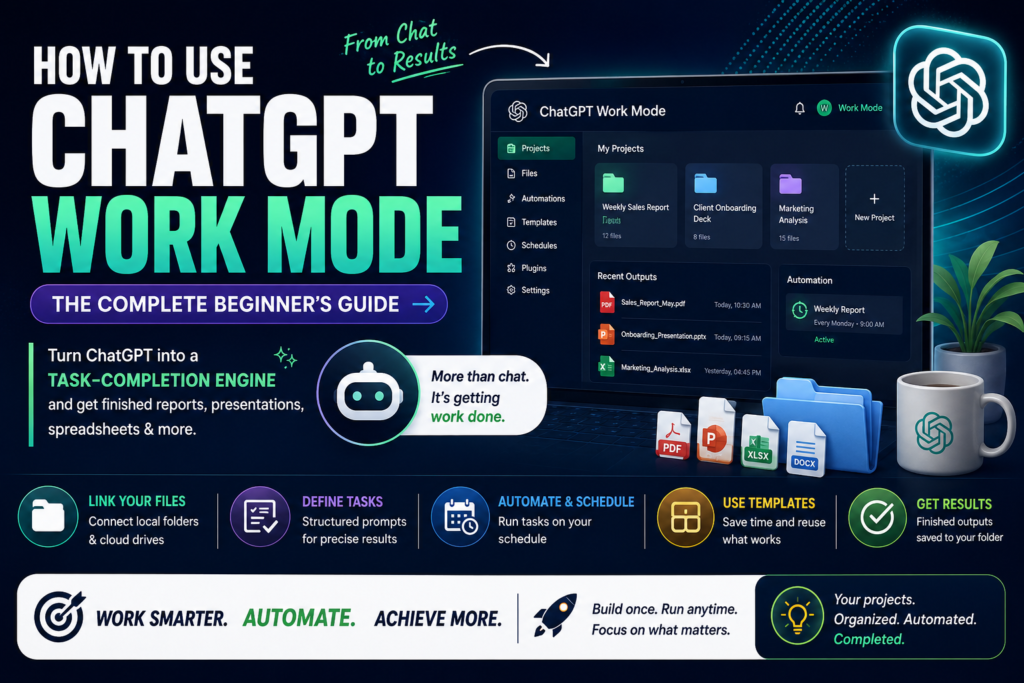
If you want to turn ChatGPT into a task-completion engine instead of just a chat window, switch to ChatGPT Work Mode and link it to a project folder — it will pull your files, follow structured prompts, and hand back finished reports, presentations, or emails instead of raw suggestions. That single shift, from conversation to execution, is what separates casual ChatGPT use from a genuine productivity workflow.
This guide walks through everything you need to set up and run Work Mode effectively: how it differs from standard chat, how to link local folders and cloud plugins, how automation and templates work, and the platform-specific quirks worth knowing about before you build your first project.
What Is Work Mode?
ChatGPT Work Mode is a task-oriented operating mode built for producing finished outputs — reports, presentations, spreadsheets, and automated recurring processes — rather than open-ended conversation. Unlike the conversational Chat mode, it prioritizes tasks such as generating detailed reports, creating presentations, or automating recurring processes.
Think of it this way: Chat mode is where you think out loud with the model. Work Mode is where you tell it exactly what “done” looks like, point it at your files, and let it produce the deliverable. Linking a project to a local folder allows direct access to files, so resources stay organized and easy to manage throughout the work.
Why This Distinction Matters
Most people default to Chat mode for everything — brainstorming, drafting, research, and finalizing — which creates messy, inconsistent outputs because the model isn’t anchored to a defined goal or file structure. Work Mode solves this by forcing structure: a project, a folder, a task prompt, and an expected output format.
ChatGPT Work Mode vs. Chat Mode vs. Code Interpreter
Before diving into setup, it helps to see how the three modes compare side by side.
| Mode | Best For | File Access | Output Type |
|---|---|---|---|
| Chat | Brainstorming, quick questions, conversation | Limited, session-based | Text responses |
| ChatGPT Work Mode | Reports, presentations, automation, recurring tasks | Local folders, cloud drives, plugins | Finished files (docs, slides, spreadsheets) |
| Code Interpreter (Codeex) | Coding-specific tasks | Sandboxed execution environment | Code, scripts, data outputs |
Chat mode is ideal for conversational interactions, brainstorming, and answering quick questions, while Work mode is designed for task management, automation, and delivering finalized outputs with precision. Code Interpreter, sometimes referred to as Codeex, remains a separate, developer-focused mode for coding tasks specifically.
How to Get Started with ChatGPT Work Mode
Platform Requirements
Access to Work Mode varies depending on which device you’re using. All users can access it on the desktop app, while web and mobile access is limited to paid plans. If you’re serious about using this feature regularly, the desktop app is the natural starting point — it’s the only platform that supports the full feature set without a subscription gate.
The desktop app provides the most comprehensive experience, especially for tasks involving local file integration and advanced features. This makes sense once you consider that Work Mode’s core value proposition — linking projects to files sitting on your machine — only works when the app can actually see your file system.
Step-by-Step Setup
- Install the ChatGPT desktop app if you haven’t already — this unlocks the full Work Mode experience without a paid plan.
- Create a new project and give it a clear, task-specific name (e.g., “Weekly Sales Report” or “Client Onboarding Deck”).
- Link a local folder to the project so ChatGPT can read and write files directly.
- Write a task prompt that defines the goal, the source files to reference, and the expected output format.
- Review permissions before granting access to sensitive folders or cloud accounts.
- Run the task and check the output saved back into your linked folder.
Once this loop is set up, Work Mode becomes far less about typing prompts from scratch each time and far more about refining a repeatable system.
Key Features of ChatGPT Work Mode
Projects and Local Folder Integration
Projects are the organizational backbone of Work Mode. By linking a project to a local folder, tasks within it automatically pull relevant files, ensuring efficiency and accuracy — for example, a report-drafting task can reach into related spreadsheets or documents stored in that same folder without you manually uploading anything each time.
This is a meaningful shift from standard ChatGPT usage, where every file has to be re-uploaded per conversation. With Work Mode, the folder link persists across sessions.
Task Prompts
Definition: A task prompt is a structured instruction that defines the desired outcome, the sources to use, and the format of the final deliverable.
Expansion: Task prompts let you define desired outcomes, specify sources, and set expectations for results, with outputs like reports or presentations saved directly to the linked folder. This keeps every deliverable tied to its originating project instead of scattered across chat threads.
Automation and Scheduling
Question: Can Work Mode run tasks automatically on a schedule?
Answer: Yes. You can schedule tasks to run at specific times, such as generating weekly reports or drafting daily emails. The key distinction is where the task runs: desktop-based tasks require your computer to remain on, while cloud-based tasks operate independently. If you need a task to run reliably even when your laptop is closed, choose the cloud-based scheduling option rather than a desktop-bound one.
Templates and Reusability
Once a task produces a good result, Work Mode lets you save it as a reusable template. A presentation template, for instance, can be repurposed for future projects, saving time and ensuring consistency, and these templates can even be shared as plugins for team-wide standardization. This is particularly useful for teams that produce the same type of deliverable — weekly status decks, client proposals, onboarding documents — on a recurring basis.
Plugins and Integrations: Connecting Your Tools
ChatGPT Work Mode’s usefulness scales dramatically once you connect it to the tools you already rely on. With access to over 1,000 tools, including Gmail, Google Drive, and other external services, plugins let you interact with external files and services directly — streamlining file sharing, email drafting, and cloud storage management.
Practically, this means a single Work Mode project can:
- Pull data from a Google Drive folder without manual export/import
- Draft and stage emails in Gmail based on a report it just generated
- Sync outputs across both local and cloud storage simultaneously
- Reference external service data without leaving the app
Additional Productivity Tools in Work Mode
Beyond the core project-and-plugin system, Work Mode ships with a few supplementary tools worth knowing about:
- Desktop Pet — a visual assistant that provides real-time updates on task progress, keeping you informed without disrupting your workflow.
- Browser Integration — lets you conduct online research without leaving the app, ensuring a seamless and uninterrupted workflow.
- Computer Use Plugin — automates actions in other desktop applications, such as editing documents or managing spreadsheets, expanding the mode’s versatility further.
None of these are strictly required to use Work Mode, but together they close the gap between “AI that suggests” and “AI that executes.”
Best Practices for Using ChatGPT Work Mode Effectively
To get consistent, reliable results from Work Mode, keep these practices in mind:
- Start with restricted permissions. Begin with restricted access to sensitive files and adjust permissions as needed for specific tasks to maintain security.
- Tune the model slider deliberately. Optimize performance by adjusting the model for speed or accuracy, with paid plans offering more customization options.
- Keep Chat and Work Mode separate. Use Chat mode for brainstorming and Work mode for producing finalized outputs to maintain focus and efficiency.
- Name projects by outcome, not topic. A project called “Q3 Report – Final Deck” is easier to reuse as a template than one called “Notes.”
- Audit linked folders periodically. As projects accumulate, stale folder links can lead to outdated source files being pulled into new tasks.
Platform-Specific Insights: Desktop vs. Web vs. Mobile
Each platform brings a different strength to Work Mode, so the right choice depends on what you’re actually doing.
| Platform | Strength | Best Use Case |
|---|---|---|
| Desktop | Local file integration, automation, scheduling | Complex, file-heavy projects requiring the full feature set |
| Web | Cloud-based tasks, plugin functionality | Remote collaboration and online-tool-driven workflows |
| Mobile | Remote access to desktop projects | Checking progress or managing tasks on the go |
Desktop is ideal for local file integration and advanced features like automation and scheduling, providing the most robust experience for complex tasks, while web focuses on cloud-based tasks and plugin functionality for remote collaboration. Mobile, meanwhile, provides remote access to desktop projects, allowing task management on the go and keeping you productive away from your primary workstation.
Real-World Use Cases for Work Mode
Reading a feature list rarely makes a tool click — seeing it applied to actual workflows does. Here are a few scenarios where Work Mode replaces hours of manual assembly with a single automated pass.
Weekly Sales or Performance Reporting
A sales lead links a project folder containing the week’s raw export files, writes one task prompt describing the report format, and schedules it to run every Friday morning. Instead of manually copying figures into a template each week, the finished report is waiting in the linked folder before the team standup even starts.
Client Proposal Generation
An agency keeps a “Proposal Template” project with a linked folder of past scopes of work and pricing sheets. When a new client comes in, a task prompt references the client’s brief alongside the template, and Work Mode assembles a first draft proposal that only needs a light final edit rather than a from-scratch build.
Recurring Email Drafts
Using the Gmail plugin, a project can be set up to draft weekly status update emails to stakeholders, pulling the latest numbers from a linked spreadsheet. The email sits in drafts, ready for a quick review before sending, rather than being written cold every time.
Research-Backed Content Briefs
Content teams can combine the Browser Integration tool with a linked folder of prior articles to generate research-backed briefs — the model checks current information online, cross-references existing house style from past documents, and produces an outline ready for a writer.
Across all of these examples, the pattern is the same: a defined project, a linked folder, a specific task prompt, and — where useful — a schedule or plugin that removes a manual step entirely.
Troubleshooting Common Work Mode Issues
Even a well-designed system runs into friction occasionally. A few issues come up often enough to be worth planning for in advance.
Outputs land in the wrong format. This usually traces back to a vague task prompt. Being explicit about the exact output — “a three-slide presentation with one chart” rather than “a presentation” — resolves most formatting mismatches.
A scheduled task didn’t run. Check whether the task was set up as desktop-based rather than cloud-based. Desktop automations only fire while your machine is powered on and the app is running; if reliability matters, switch the schedule to a cloud-based task instead.
A plugin loses its connection. Cloud service integrations like Gmail or Google Drive occasionally need re-authentication after a password change or a security review on the connected account. Re-linking the plugin from the project settings typically resolves this in under a minute.
A linked folder pulls outdated files. As projects accumulate history, old versions of source documents can get picked up alongside newer ones. Periodically pruning a linked folder — or renaming outdated files clearly — keeps task outputs accurate.
Security and Permissions Considerations
Because Work Mode can read from and write to local folders and connected cloud accounts, permissions deserve real attention rather than a one-time setup pass. A few habits are worth building in from day one:
- Grant folder access on a per-project basis rather than linking an entire drive
- Review which plugins have standing access every few months, and disconnect ones you no longer use
- Keep sensitive financial or personal documents in folders that are never linked to automated, scheduled tasks
- Treat any output destined for external sharing (client-facing reports, public content) as requiring a human review step before it leaves the linked folder
None of this is unique to Work Mode — it’s the same discipline that applies to any tool with file and account access — but it matters more here because automation removes the manual checkpoint where a person might otherwise catch an error before it compounds.
Common Questions About ChatGPT Work Mode
Do I need a paid plan to use Work Mode? Not necessarily. All users can access Work mode on the desktop app, while web and mobile access is limited to paid plans. If you’re on a free plan, start with the desktop app.
What happens to files created in Work Mode? Outputs are saved directly into the local folder linked to your project, so reports, decks, or documents land exactly where you’d expect them, without manual downloading.
Can I automate recurring tasks without keeping my computer on? Yes, as long as you choose cloud-based scheduling rather than a desktop-bound task, since desktop automations require the machine to stay powered on.
Is Work Mode the same as Code Interpreter? No. Code Interpreter (Codeex) is a separate, coding-specific mode. Work Mode is built for general task automation — reports, presentations, and document workflows — not code execution.
How many plugins can I connect to a Work Mode project? There’s no fixed cap mentioned for a single project, but the broader plugin ecosystem spans over 1,000 tools, including major services like Gmail and Google Drive.
Is my data safe when I link a local folder or cloud plugin? Work Mode’s permissions system is designed to be adjusted per task, so the safest approach is to start restrictive — granting access only to the specific folder or account a task actually needs — and widen access only when a project clearly requires it.
Can I use Work Mode for team collaboration, not just solo tasks? Yes. Because completed tasks can be saved and shared as templates, a team can standardize how a specific deliverable — a report format, a proposal structure, a slide deck layout — gets produced, rather than everyone building it differently each time.
Final Thoughts
For anyone currently treating ChatGPT purely as a question-and-answer tool, the jump to Work Mode changes the relationship entirely. Instead of copying answers out of a chat window and reassembling them by hand, the finished file — the report, the deck, the drafted email — simply appears in the folder where it belongs.
That said, the payoff depends on setup discipline. A vague task prompt still produces a vague output, and a permissions setup that’s too loose still carries the same risk any automated system carries. The teams and individuals who get the most out of Work Mode are the ones who treat it less like a chatbot feature and more like a lightweight operations layer — one project, one clear goal, one reviewed output at a time.
ChatGPT Work Mode represents a meaningful shift from “AI as a chatbot” to “AI as a task engine.” By combining project-linked folders, structured task prompts, scheduled automation, reusable templates, and a deep plugin ecosystem, it gives individuals and teams a way to offload genuinely repetitive work rather than just getting suggestions for how to do it themselves.
If you’re new to Work Mode, start small: link one folder, write one clear task prompt, and see what comes back. Once you trust the output, turn it into a template — that’s when the real time savings begin to compound.