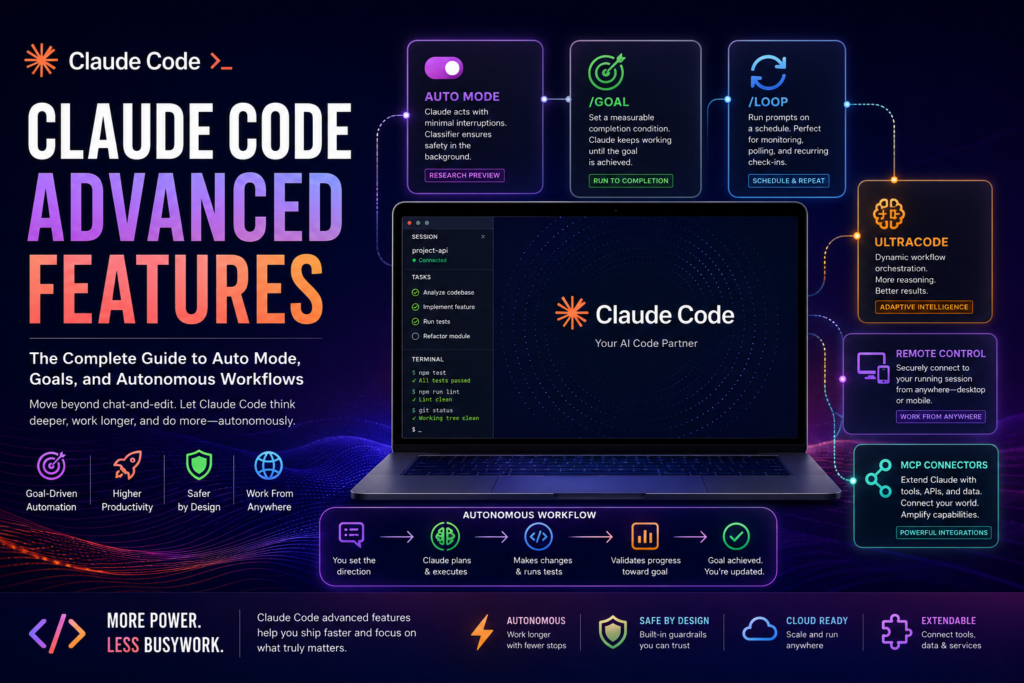
Claude Code advanced features let you move past simple chat-and-edit sessions into autonomous, goal-driven automation: Claude can keep working across turns until a condition is met, run on a schedule, orchestrate dozens of subagents at once, and follow you from your laptop to your phone. If you’re still using Claude Code purely as a “type a prompt, approve an edit, repeat” tool, you’re using a fraction of what it can actually do.
This guide walks through every major layer of Claude Code advanced features that exists today, based on Anthropic’s own documentation rather than secondhand claims. You’ll learn exactly how auto mode, /goal, /loop, effort levels, dynamic workflows, Remote Control, and MCP connectors fit together, when to reach for each one, and how they compare so you can build a setup that matches your actual workflow.
What Are Claude Code Advanced Features?
Claude Code advanced features are the configuration options, slash commands, and permission settings that extend Claude Code beyond a single back-and-forth coding session. Where the basic workflow is “ask, review, approve,” the advanced layer is built around three ideas: reducing how often Claude has to stop and ask you something, letting Claude coordinate more work per request, and letting you reach a running session from anywhere.
In practice, this means five interlocking systems:
- Permission modes, especially auto mode, which determine how much Claude can do without a manual approval prompt
/goal, which keeps a session running across turns until a measurable condition holds/loopand scheduled tasks, which re-run a prompt on a timer- Effort levels and dynamic workflows (ultracode), which control how much reasoning and orchestration Claude applies to a task
- Remote Control, Claude Code on the web, and MCP connectors, which extend where and how Claude can act
Each of these is documented and shipped, not speculative. The rest of this guide breaks down how they actually work.
How Auto Mode Unlocks Autonomous Workflows in Claude Code
What Auto Mode Actually Does
Auto mode is the permission mode that removes the per-action approval prompt. Instead of asking before every file edit, shell command, or network request, a separate classifier model reviews each action in the background and blocks anything that escalates beyond your original request, touches infrastructure it doesn’t recognize, or looks like it was driven by hostile content Claude read along the way.
This is one of the most consequential Claude Code advanced features because it changes the shape of a session. In default mode, you’re in the loop for every change. In auto mode, you state the direction once and Claude keeps moving, only surfacing the actions the classifier actually flags. Anthropic is explicit that auto mode is a research preview: it reduces prompts, but it is not a substitute for review on sensitive operations, and it currently requires Sonnet 4.6, Opus 4.6, or Opus 4.7 on a direct Anthropic plan.
By default, the classifier blocks things like downloading and executing remote code, pushing directly to main, granting IAM or repo permissions, and modifying shared infrastructure, while allowing local file operations, dependency installs declared in your lock files, and read-only HTTP requests. If you tell Claude “don’t deploy yet” mid-conversation, the classifier treats that as a hard boundary until you lift it.
Setting a Completion Condition with /goal
/goal is the command that answers a specific question: how do you keep Claude working without typing “continue” after every turn? You set a measurable completion condition, and after each turn a small, fast model checks the transcript against that condition. If it isn’t met, Claude starts another turn on its own.
text
/goal all tests in test/auth pass and the lint step is cleanA good /goal condition has one measurable end state, a stated way for Claude to prove it (like “npm test exits 0″), and any constraints that must not change along the way. You can bound the run with a clause like “or stop after 20 turns,” and you can check progress at any time by running /goal with no arguments. This is one of the Claude Code advanced features that pairs directly with auto mode: auto mode removes the per-tool prompts, and /goal removes the per-turn prompts, so the two together get you closest to a fully hands-off run.
Running Recurring Tasks with /loop
Where /goal runs until a condition is true, /loop runs a prompt repeatedly on a timer. It’s the right tool for polling, not completion.
text
/loop 30m check if the deployment finished and tell me what happened/loop schedules a cron job that fires in the background while your session stays open, with a default interval of 10 minutes if you don’t specify one. These session-scoped loops are gone when you close the terminal, expire automatically after seven days, and won’t survive a restart, which is why Anthropic recommends Cloud or Desktop scheduled tasks instead when you need something durable that runs without your machine staying on.
Managing Complex Tasks with Effort Levels and Dynamic Workflows
The /effort Slider Explained
Among Claude Code advanced features, the effort slider is the one most people skip past without realizing what it controls. Effort governs adaptive reasoning: how much the model thinks before responding, scaled to task complexity. Run /effort to open an interactive slider, or set a level directly.
| Effort level | When to use it |
|---|---|
low | Short, scoped, latency-sensitive tasks that aren’t intelligence-sensitive |
medium | Cost-sensitive work where some intelligence can be traded off |
high | The default balance of token spend and reasoning depth for most models |
xhigh | Deeper reasoning at higher token cost; default on Opus 4.7 |
max | Maximum reasoning, prone to overthinking on simple tasks; session-only |
ultracode | Plans a dynamic workflow for every substantive task at xhigh reasoning; session-only |
Setting a level you don’t need wastes tokens; setting one too low leaves capability on the table for genuinely hard problems. For routine refactors, high is usually fine. For an ambiguous architecture decision or a gnarly bug, bumping to xhigh or adding ultrathink anywhere in your prompt requests deeper one-off reasoning without changing your session’s saved effort setting.
Ultracode: Orchestrating Subagents at Scale
This is the feature that articles describing “Ultra Code” are usually pointing at, even when the name gets garbled. Ultracode isn’t a separate product; it’s a setting reachable through /effort ultracode that combines xhigh reasoning with automatic dynamic-workflow orchestration.
A dynamic workflow is a JavaScript script that Claude writes to coordinate many subagents at once, dozens to hundreds per run, executing in the background while your session stays responsive. Instead of Claude holding every intermediate result in its own context window turn by turn, the script holds the loop, the branching, and the intermediate state itself. That’s the structural reason this approach handles large-scale work, like a codebase-wide audit or a 500-file migration, without “context bloat” creeping in: the orchestration logic and the bulk of the raw output live outside Claude’s context, and only the synthesized result comes back.
You can trigger a one-off workflow by including the word “workflow” in a prompt without changing your session’s effort level, or you can turn on /effort ultracode so Claude decides for itself when a task is substantial enough to warrant one. Anthropic ships /deep-research as a bundled example: it fans out web searches across several angles, cross-checks sources, and returns a single cited report instead of a turn-by-turn transcript. Once a workflow run does what you wanted, you can save its script as a reusable command with /workflows and the s key, so the same orchestration runs again next time without Claude re-planning it from scratch.
Dynamic workflows are still a research preview, capped at 16 concurrent agents and 1,000 agents per run, and they spend meaningfully more tokens than working through the same task in conversation, so they’re worth reaching for on genuinely large jobs rather than everyday edits.
Running Claude Code Away From Your Desk
Remote Control vs Claude Code on the Web
A lot of confusion around Claude Code advanced features comes from blending two different remote-execution patterns that solve different problems.
Remote Control connects claude.ai/code or the mobile app to a session running on your own machine. Run claude remote-control in a project directory, and Claude keeps executing locally, with your filesystem, MCP servers, and tools all available exactly as if you were typing at the keyboard. You can pick up the same conversation from your phone, and if your laptop sleeps or the network drops, the session reconnects automatically once you’re back online. The catch is right there in the name: it’s remote control of a local process, so your machine still has to stay on and the terminal has to stay open.
Claude Code on the web is the other model: sessions run entirely on Anthropic-managed cloud infrastructure, connected to your GitHub repository, with no local machine required at all. This is the closer match to what people mean when they talk about “running Claude Code on a VPS so it keeps going without my laptop” — except it’s a built-in cloud environment rather than a server you have to provision and maintain yourself.
Comparing Ways to Work Away From Your Terminal
| Approach | Trigger | Runs on | Needs your machine on? | Best for |
|---|---|---|---|---|
| Remote Control | Drive a live session from claude.ai or mobile | Your machine | Yes | Steering work already in progress from another device |
| Claude Code on the web | Start a task from claude.ai/code | Anthropic cloud | No | Kicking off work with no local setup, or running tasks in parallel |
/loop | Set an interval inside a session | Your machine | Yes | Quick polling during an open session |
| Cloud scheduled tasks | Set a recurring schedule | Anthropic cloud | No | Durable automation like nightly reviews |
| Slack integration | @Claude mention in a channel | Anthropic cloud | No | PRs and reviews triggered from team chat |
Among Claude Code advanced features, this is the layer to plan around your actual constraints: if you need your local MCP servers and project configuration available from your phone, Remote Control is the right call. If you want work to keep running independent of whether your laptop is even open, Claude Code on the web or cloud scheduled tasks are the better fit.
Expanding Automation Through MCP Connectors and Browser Integration
MCP Connectors
The Model Context Protocol (MCP) is how Claude Code reaches outside your codebase into the rest of your stack: project management tools, databases, monitoring dashboards, and CRM systems. You can add a remote HTTP or SSE server, a local stdio server, or import servers you’ve already configured in Claude Desktop, and scope each one to a single project or your whole user account. Practical examples in Anthropic’s own documentation include connecting to Sentry to monitor errors, to GitHub for code reviews, and to a PostgreSQL database for direct queries.
This connector layer is what turns Claude Code advanced features from “a better coding assistant” into something closer to an operations tool: once an MCP server for your ticketing system or your deployment dashboard is connected, Claude can read and act on that data inside the same session where it’s writing code, instead of you tabbing between five different apps.
Chrome Browser Automation
When an API connector doesn’t exist for a tool you rely on, Claude Code’s Chrome integration fills the gap. Connecting the Claude in Chrome extension gives Claude a visible browser window that shares your existing login state, so it can test a local web app, read console errors to debug a layout bug, fill out forms, extract data from a page into a CSV, or work inside Google Docs, Gmail, or Notion without any API setup at all. When Claude hits a login wall or a CAPTCHA, it pauses and hands control back to you rather than trying to push through.
This is the practical answer to “what about legacy tools with no API”: browser automation through Chrome, not a separate “browser emulation” mode, is the documented mechanism, and it’s currently in beta for Chrome and Edge.
Claude Code Advanced Features at a Glance
| Feature | What it solves | Where to start |
|---|---|---|
| Auto mode | Removes per-action approval prompts | Permission mode selector or --permission-mode auto |
/goal | Keeps a session running until a condition is verified | Type /goal <condition> |
/loop | Re-runs a prompt on a timer | Type /loop <interval> <prompt> |
Effort / ultracode | Controls reasoning depth and multi-agent orchestration | /effort |
| Remote Control | Continues a local session from phone or browser | claude remote-control |
| Claude Code on the web | Runs sessions on Anthropic’s cloud, no local machine | claude.ai/code |
| MCP connectors | Connects Claude Code to external tools and data | /mcp |
| Chrome integration | Automates browser-based tasks without an API | --chrome flag or /chrome |
Strategies to Get the Most From Claude Code Advanced Features
Adopting these capabilities works best as a layered build-out rather than turning everything on at once. A few practical starting points:
- Start with
/goalon a contained task before reaching for auto mode or dynamic workflows, so you can see how the completion-checking model interprets your conditions before trusting it with riskier work. - Pair auto mode with stated boundaries in conversation — explicitly say what Claude should not do (like “don’t push to main”) rather than relying only on the classifier’s defaults.
- Reserve
ultracodeand dynamic workflows for genuinely large jobs, such as multi-hundred-file migrations or cross-source research, since the token cost is meaningfully higher than working turn by turn. - Use Claude Code on the web for anything that needs to survive your laptop closing, and Remote Control only for sessions you’re actively steering from another device.
- Connect MCP servers for the two or three tools you switch to most often first, rather than wiring up every integration at once, so permission scopes stay easy to audit.
Frequently Asked Questions About Claude Code Advanced Features
What are Claude Code advanced features used for? They’re used to reduce manual oversight on long or repetitive tasks, coordinate larger amounts of work than a single conversation can track, and let a session keep running across devices, schedules, or cloud infrastructure instead of staying tied to one open terminal.
Is auto mode the same as bypassing all permissions? No. Auto mode still runs a classifier check on every action before it executes and blocks anything that looks like an escalation, an unrecognized destination, or content driven by something Claude read rather than something you asked for. bypassPermissions mode, by contrast, skips checks entirely and is intended only for isolated containers or VMs.
What’s the difference between /goal and /loop? /goal keeps running until a stated condition is verified true by an evaluator model; it’s for finishing a defined piece of work. /loop re-runs a prompt on a fixed interval indefinitely (until you cancel it or it expires); it’s for polling or recurring checks, not for reaching a single end state.
Do I need a VPS to run Claude Code remotely? Not necessarily. Claude Code on the web runs sessions on Anthropic-managed cloud infrastructure with no server of your own required. A self-managed VPS is still a valid pattern if you want full control over the execution environment, but it’s not the only — or the simplest — way to get machine-independent execution.
What is “Ultra Code” in Claude Code? It’s ultracode, an effort-level setting (not a separate product) that combines xhigh reasoning with automatic dynamic-workflow orchestration, letting Claude plan and run multi-agent workflows for substantial tasks without you asking for one explicitly.
Final Thoughts
The gap between a basic Claude Code session and one built around Claude Code advanced features comes down to how much of the loop you’re still closing manually. Auto mode and /goal remove the prompts and check-ins inside a session; /loop and cloud scheduled tasks remove the need to keep a session open at all; effort levels and dynamic workflows change how much work a single request can coordinate; and Remote Control, Claude Code on the web, MCP connectors, and Chrome integration change where that work can reach. None of these require exotic setup — most are a slash command or a flag away — but combining them deliberately, rather than turning every option on by default, is what actually compounds into a faster, more autonomous workflow.